Spring AI Series: #1 Locally run LLMs, Using Multiple LLMs as Clients, and Structured Outputs
Check the previous article before reading this: ‘Hello World’
In this installment, we’ll explore some more fun Spring AI stuffs!
Setting up Ollama
In this instalment, we’ll set up Ollama to run a local model, instead of Gemini through their API key. If you do not have a powerful GPU, it’ll be painfully slow, but you’ll have the idea on how to set one up. We’ll run Ollama on Docker, so you have to make sure you have Docker installed in your machine. You can run Ollama with or without GPU, but I’ll highly recommend to have your GPU set up if you have one.
To have your Nvidia GPU available to your docker containers, you need to have Nvidia Container Toolkit installed in your machine. Just follow the steps described here. After that, tell your docker instance to use Nvidia drivers. And then run ollama. (These steps are directly taken from dockerhub. It’s as uncomplicated as it can get!)
sudo nvidia-ctk runtime configure --runtime=docker
sudo systemctl restart docker

docker run -d --gpus=all -v ollama:/root/.ollama -p 11434:11434 --name ollama ollama/ollama
And, run the model you’d like to try-
docker exec -it ollama ollama run mistral-small
Now, we’ll modify our code to use Ollama as our LLM provider. Your dependencies will look like this-
dependencies {
    implementation 'org.springframework.boot:spring-boot-starter-web'
//    implementation 'org.springframework.ai:spring-ai-starter-model-google-genai'
    implementation 'org.springframework.ai:spring-ai-starter-model-ollama'
}
We had to comment out Google’s one just so that we do not mess with the autoconfiguration. We’ll bring it back when we’ll set up multiple chat client.
And our application.properties file will have a few new entries-
spring.application.name=TestAgent
#spring.ai.google.genai.chat.options.model=gemini-2.0-flash-lite
#spring.ai.google.genai.api-key=${GEMINI_API_KEY}

spring.ai.ollama.base-url=http://localhost:11434
spring.ai.ollama.chat.options.model=mistral-small
spring.ai.ollama.chat.options.keep_alive=20m
As you can see, we are using a “smaller” version of Mistral, which is still quite huge. It’s an open-source model. The keep alive parameter basically prevents the model from being offloaded from the memory after a request, which makes the experience a lot faster.
The rest of the code? Remains exactly the same! That’s how Spring abstracts the vendor specific implementations, which makes debugging a lot easier and faster.
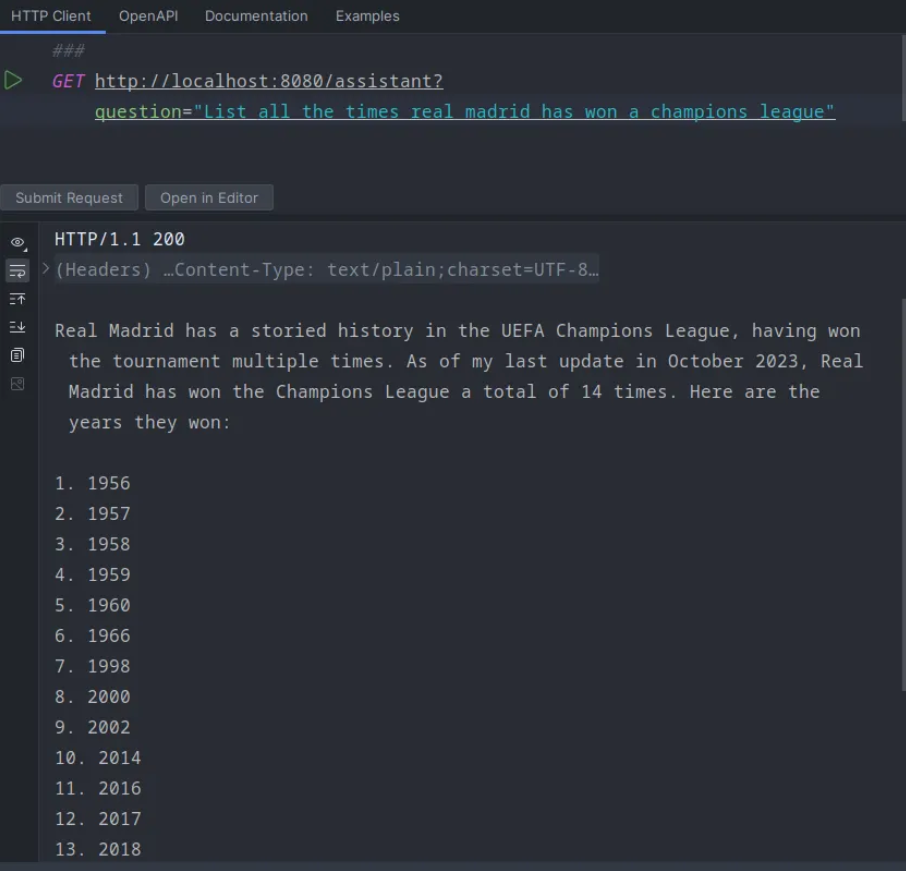
Having multiple LLM providers
What we’ll do now, is to have two different LLM providers to respond to the same question. And to do that, we’ll bring back the Gemini dependency and uncomment the Gemini specific lines in application.properties.
dependencies {
    implementation 'org.springframework.boot:spring-boot-starter-web'
    implementation 'org.springframework.ai:spring-ai-starter-model-google-genai'
    implementation 'org.springframework.ai:spring-ai-starter-model-ollama'
}
Since the autoconfiguration won’t work anymore, we’ll have two separate @Bean configured for two chat clients.
@Configuration
public class ChatClientConfig {

    @Bean
    public ChatClient geminiChatClient(GoogleGenAiChatModel chatModel) {
        return ChatClient.create(chatModel);
    }

    @Bean
    public ChatClient ollamaChatClient(OllamaChatModel chatModel) {
        return ChatClient.create(chatModel);
    }
}
And, we’ll update our controller too to use these two ChatClients. While we do that, we’ll slightly modify our Gemini and Ollama API calls to be non-blocking; hence, the introduction of Project Reactor. It comes as a part of Spring AI BoM that we had set up. So we don’t need to add any extra dependencies.
Thus, we have 3 endpoints now!
@RestController
@ResponseBody
public class TestController {

    private final ChatClient geminiChatClient;
    private final ChatClient ollamaChatClient;

    public TestController(@Qualifier("geminiChatClient") ChatClient geminiChatClient,
                          @Qualifier("ollamaChatClient") ChatClient ollamaChatClient) {

        this.geminiChatClient = geminiChatClient;
        this.ollamaChatClient = ollamaChatClient;
    }

    @GetMapping("/geminiAssistant")
    Flux<String> inquireGemini(@RequestParam String question) {
        return geminiChatClient
                .prompt()
                .user(question)
                .stream()
                .content();
    }

    @GetMapping("/ollamaAssistant")
    Flux<String> inquireOllama(@RequestParam String question) {
        return ollamaChatClient
                .prompt()
                .user(question)
                .stream()
                .content();
    }

    @GetMapping("/assistant")
    Flux<String> assistant(@RequestParam String question) {
        Flux<String> geminiOutput = geminiChatClient
                .prompt()
                .user(question)
                .stream()
                .content();

        Flux<String> ollamaOutput = ollamaChatClient
                .prompt()
                .user(question)
                .stream()
                .content();

        return Flux.concat(geminiOutput, ollamaOutput);
    }
}
Try it and check the outputs! The Ollama one is really grinding my gear at this point. I’ll try this on my laptop, which has a better GPU.
Structured Output
Until now, we are getting our responses as String, which is okay, but not that useful when we are trying to use this data in other areas and we need these data in a reliable structure. Lucky for us, this is where the entity API comes into play.
We’re asking our LLM how many champions league Real Madrid have had so far. Let’s put this into a structure - let’s define a ChampionsLeague record.
public record ChampionsLeague(List<Trophy> trophyList) {
}

record Trophy(String year, String finalVenue, String finalOpponent) {
}
Then, let’s modify our Gemini endpoint. This entity API is only available when we are using the blocking call, so we’re going back to that.
@GetMapping("/geminiAssistant")
ChampionsLeague inquireGemini(@RequestParam String question) {
    return geminiChatClient
            .prompt()
            .user(question)
            .call()
            .entity(ChampionsLeague.class);
}
Now, if we send the following prompt-
Generate the list of all champions league trophies that Real Madrid have won, along with which club they played against in the final and where the venue was in the final.
We get this beautiful JSON-
{
  "trophyList": [
    {
      "year": "1956",
      "finalVenue": "Parc des Princes, Paris",
      "finalOpponent": "Stade de Reims"
    },
    {
      "year": "1957",
      "finalVenue": "Santiago Bernabéu Stadium, Madrid",
      "finalOpponent": "AC Fiorentina"
    },
    {
      "year": "1958",
      "finalVenue": "Heysel Stadium, Brussels",
      "finalOpponent": "Milan"
    },
    {
      "year": "1959",
      "finalVenue": "Neckarstadion, Stuttgart",
      "finalOpponent": "Stade de Reims"
    },
    {
      "year": "1960",
      "finalVenue": "Hampden Park, Glasgow",
      "finalOpponent": "Eintracht Frankfurt"
    },
    {
      "year": "1966",
      "finalVenue": "Heysel Stadium, Brussels",
      "finalOpponent": "Partizan"
    },
    {
      "year": "1998",
      "finalVenue": "Amsterdam ArenA, Amsterdam",
      "finalOpponent": "Juventus"
    },
    {
      "year": "2002",
      "finalVenue": "Hampden Park, Glasgow",
      "finalOpponent": "Bayer Leverkusen"
    },
    {
      "year": "2014",
      "finalVenue": "Estádio da Luz, Lisbon",
      "finalOpponent": "Atlético Madrid"
    },
    {
      "year": "2016",
      "finalVenue": "San Siro, Milan",
      "finalOpponent": "Atlético Madrid"
    },
    {
      "year": "2017",
      "finalVenue": "Millennium Stadium, Cardiff",
      "finalOpponent": "Juventus"
    },
    {
      "year": "2018",
      "finalVenue": "NSC Olimpiyskiy Stadium, Kyiv",
      "finalOpponent": "Liverpool"
    },
    {
      "year": "2022",
      "finalVenue": "Stade de France, Saint-Denis",
      "finalOpponent": "Liverpool"
    }
  ]
}
Quite impressive!
Can you do the same with your Ollama endpoint? Mine was taking so long that I have moved to Gemma3 model with the 4 billion parameters. This is what Gemma has produced.
{
  "trophyList": [
    {
      "year": "2022",
      "finalVenue": "FSG Stadion, Istanbul",
      "finalOpponent": "Liverpool"
    },
    {
      "year": "2018",
      "finalVenue": "Estadio Wanda Metropolitano, Madrid",
      "finalOpponent": "Atlético Madrid"
    },
    {
      "year": "2017",
      "finalVenue": "Saint-Denis, Paris",
      "finalOpponent": "Juventus"
    },
    {
      "year": "2019",
      "finalVenue": "Wembley Stadium, London",
      "finalOpponent": "Manchester City"
    },
    {
      "year": "2016",
      "finalVenue": "Saint-Denis, Paris",
      "finalOpponent": "Bayern Munich"
    },
    {
      "year": "2014",
      "finalVenue": "Wembley Stadium, London",
      "finalOpponent": "Barcelona"
    },
    {
      "year": "2012",
      "finalVenue": "Santiago Bernabéu Stadium, Madrid",
      "finalOpponent": "Bayern Munich"
    },
    {
      "year": "2014",
      "finalVenue": "Wembley Stadium, London",
      "finalOpponent": "Manchester United"
    },
    {
      "year": "2011",
      "finalVenue": "St. James' Park, Newcastle",
      "finalOpponent": "Manchester United"
    },
    {
      "year": "2010",
      "finalVenue": "Estadio José Alvalade, Lisbon",
      "finalOpponent": "Porto"
    },
    {
      "year": "2002",
      "finalVenue": "Santiago Bernabéu Stadium, Madrid",
      "finalOpponent": "Hamburger SV"
    },
    {
      "year": "2000",
      "finalVenue": "Estadio José Alvalade, Lisbon",
      "finalOpponent": "Valencia"
    },
    {
      "year": "1998",
      "finalVenue": "Santiago Bernabéu Stadium, Madrid",
      "finalOpponent": "Borussia Dortmund"
    },
    {
      "year": "1997",
      "finalVenue": "Santiago Bernabéu Stadium, Madrid",
      "finalOpponent": " Juventus"
    },
    {
      "year": "1994",
      "finalVenue": "Santiago Bernabéu Stadium, Madrid",
      "finalOpponent": "Fc Barcelona"
    },
    {
      "year": "1986",
      "finalVenue": "Santiago Bernabéu Stadium, Madrid",
      "finalOpponent": "Parma"
    },
    {
      "year": "1981",
      "finalVenue": "La Paz Sports Complex, Munich",
      "finalOpponent": "Schalke 04"
    },
    {
      "year": "1985",
      "finalVenue": "Borispa Stadium, Madrid",
      "finalOpponent": "ZFC Spartak Moscow"
    },
    {
      "year": "1984",
      "finalVenue": "Paris",
      "finalOpponent": "Stade de France, Paris"
    }
  ]
}
(facepalm)
But you know the drill by now. Try different models, see what works for you.
We have tried a lot of stuff today. In the next instalment we’ll explore Vector database usage with Spring AI!